Send a Payment Request to a Group / Team / Class
This article will explain how to send a payment request to an individual. Click this link if you are sending a payment request for a product with limited spaces.
Send a request from an individual's profile.
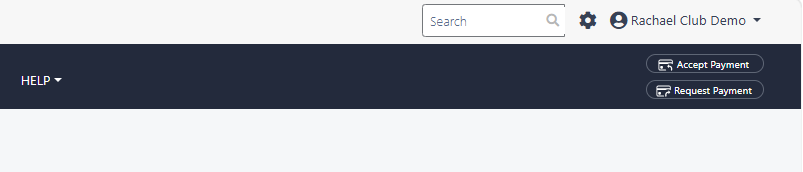
Click on Payment Request button
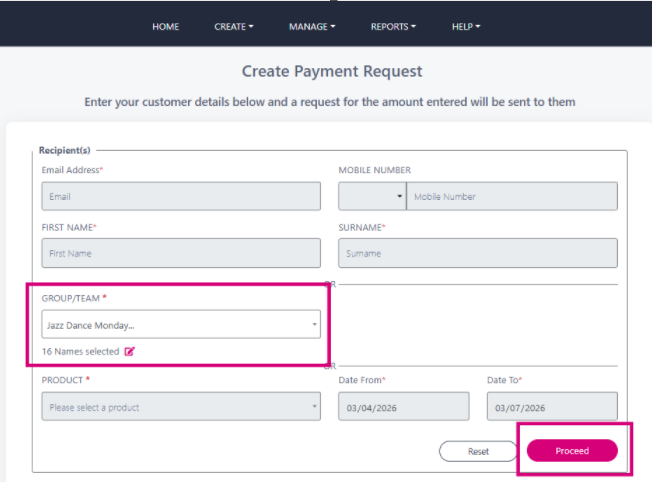
Select the name of the group / team or class. If you click the pink pencil icon, you can remove recipients from the list if required. Click the proceed button
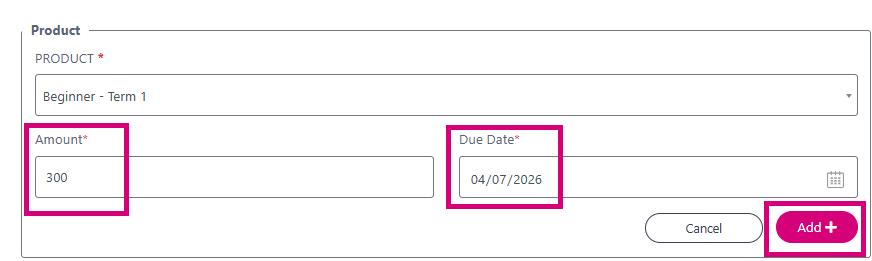
Select the product you want payment for from the drop down menu. You can type in the product field to narrow your search. Click the Add button
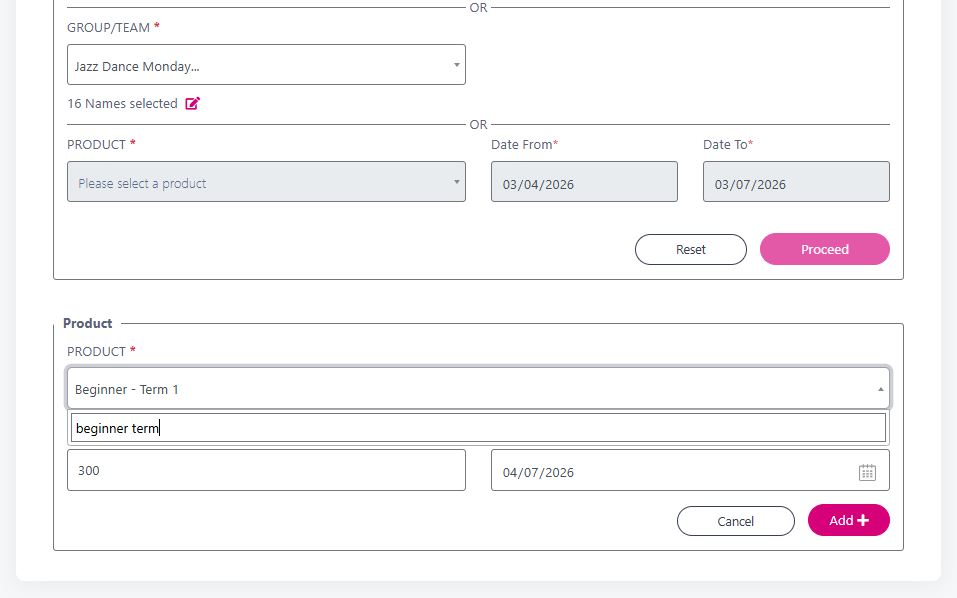
Now that you have selected the product, you can change the amount if you are reducing the price for this group. You can also change the payment's due date. Then click the pink Add button
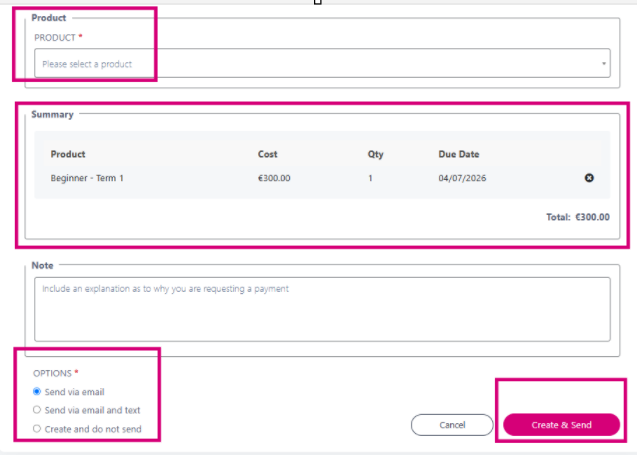
You can select additional products to add to the request.
You will see a summary of the products you have already added.
You can leave an internal note for your records
You can send by email / SMS and email / or send later
Click the pink Create and Send button. You will be asked to Confirm and Proceed
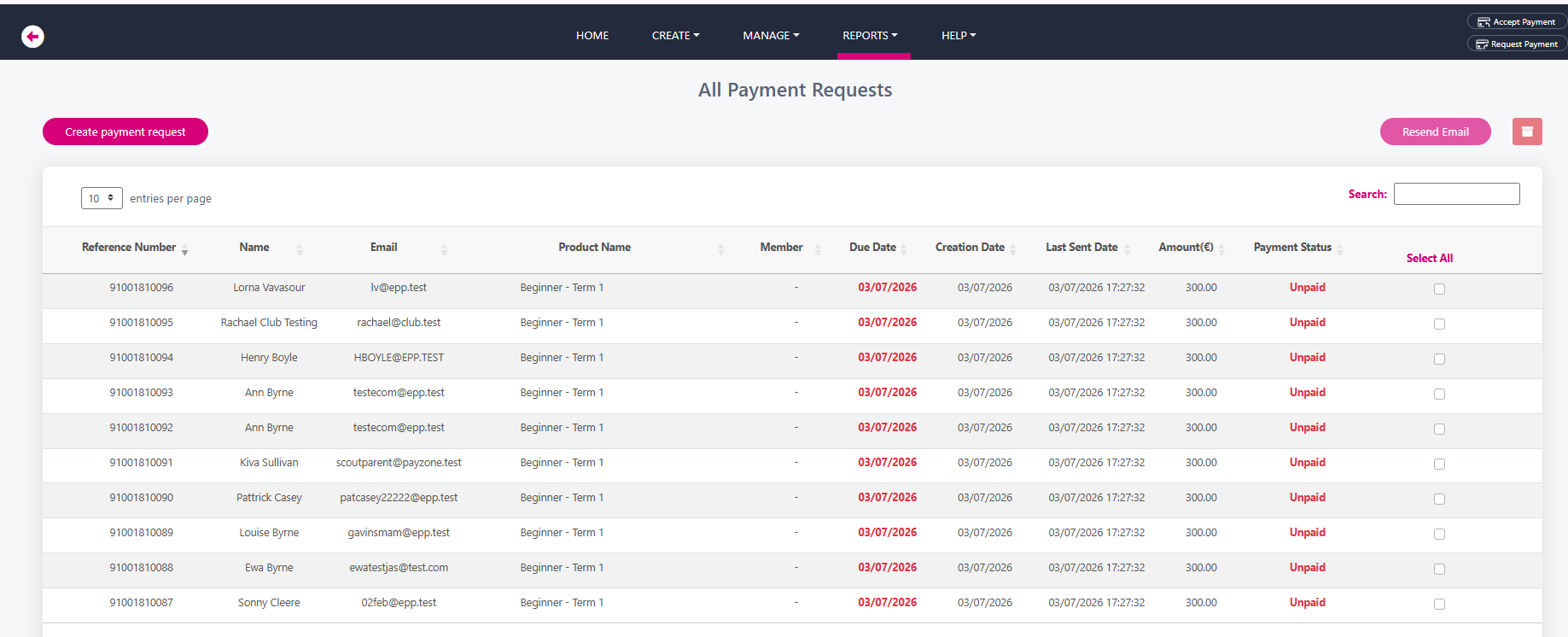
Once sent, the screen will change to the All Payment Requests report where you can see the status of the request.