Update your Organisations Contact Details
To update organisation contact details, follow these steps:
From the dashboard, click on your name on the top right of the screen
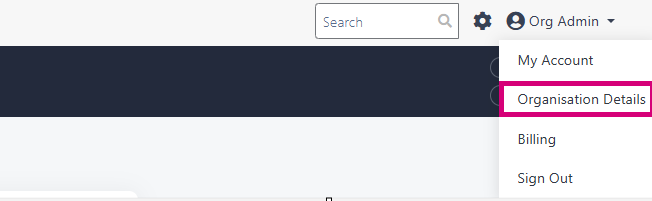
From there click on Organisation Details
This will open the below page
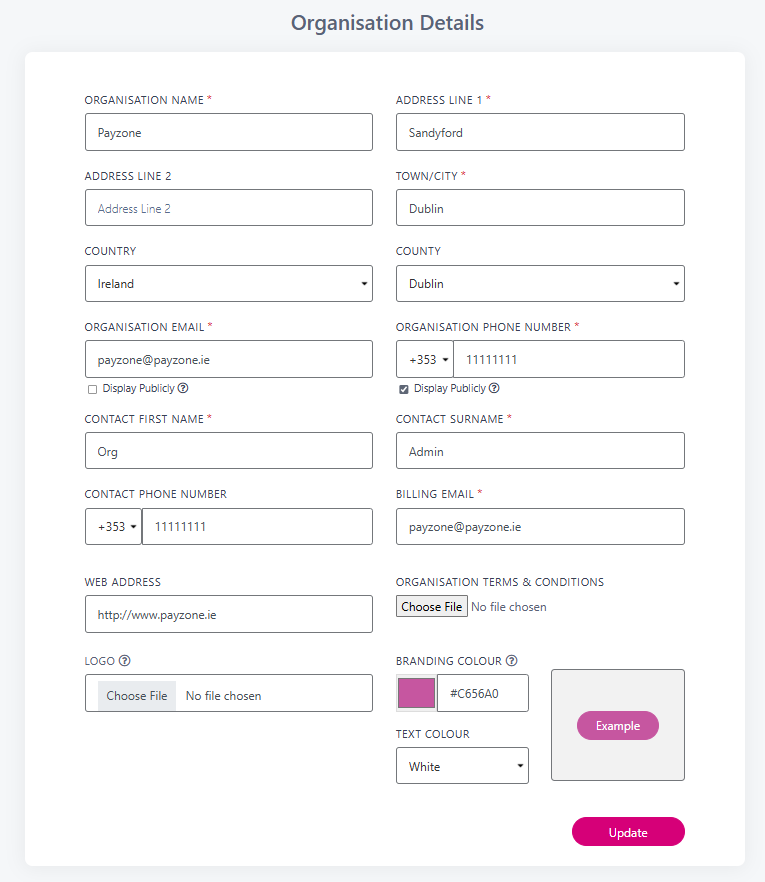
To change any of the details, you can edit the current information, make the changes and then click ‘Update’ at the end of the page
Which Field's are customer facing?
Organisation Name - Show on all receipts and shows on the product list page
Address - the address entered in here will show up on the bottom of payment requests
Organisation Email - This will display on all receipts as the main contact email for customers
It will also be displayed in the footer of the product list, if you have not chosen to ‘display publicly’ then the email address will not be displayed on the product list footer.
Organisation Phone Number - This will be displayed in the footer of the product list, if you have not chosen to ‘display publicly’ then the email address will not be displayed on the product list footer.
Contact Phone Number - This number is currently displaying on all receipts, if this is your personal phone number you may wish to update this to the organisation phone number.
Web Address - This will display on the onscreen receipt after payment, the customer will be given the option to return to your website.
Terms & Conditions - These will be displayed to your customer at the registration and the payments stage
Logo - If you upload a logo, this will display on your product list page instead of the organisation name.
Branding Colour - Read more about that here and about Text Colour here