How to update your customer's email address and phone number
This article will show you how you can update your customer’s contact details which can be accessed through their customer profile.
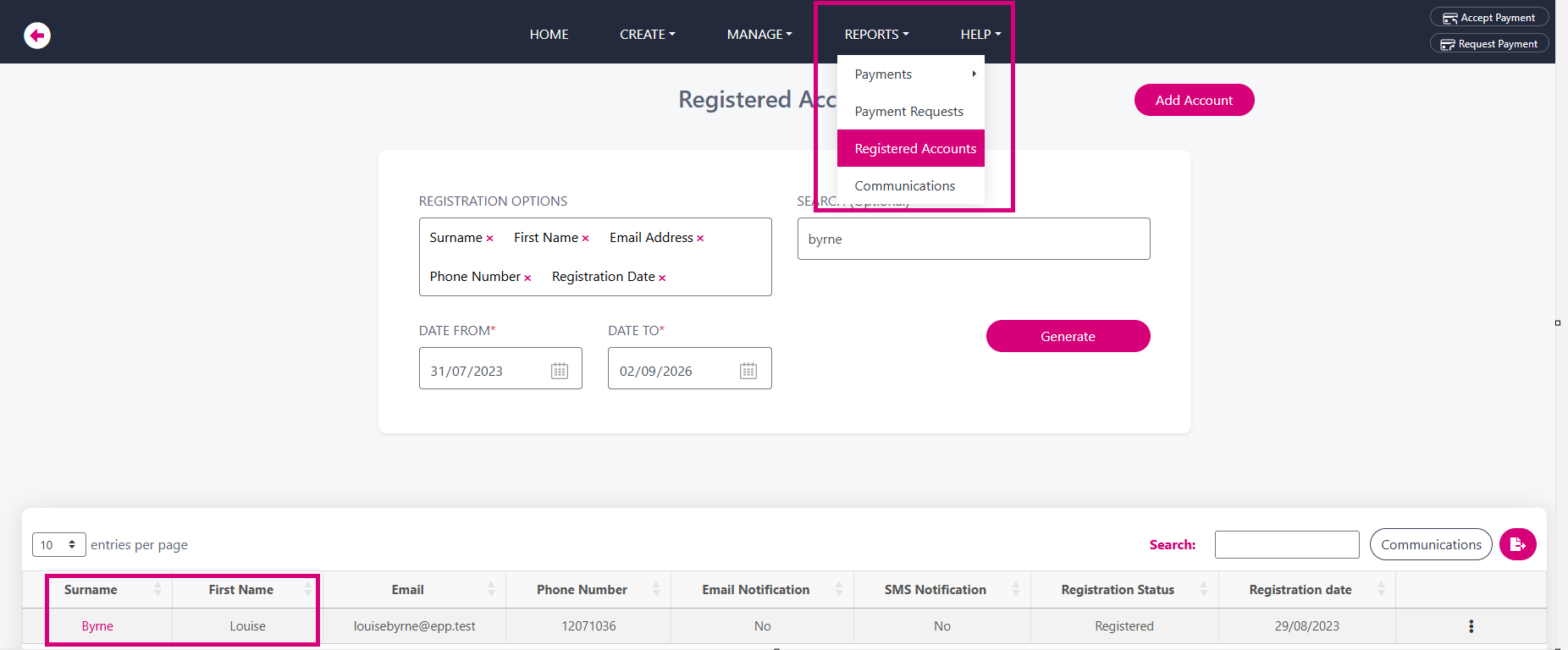
Search customer profile by going to Reports → Registered Accounts. Type the surname into the search field and click on the appropriate surname highlighted in pink. This will open up their complete profile.
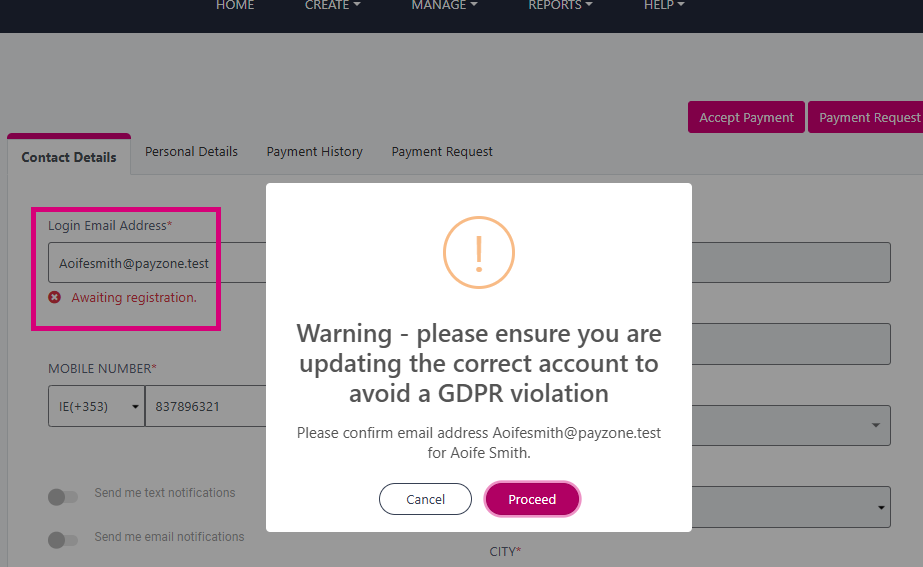
On the Contact Details tab, replace the existing email or phone number with the new details and click the pink update button. If the account is unverified and Awaiting Registration, a GDPR warning appears. This is a good time to confirm the email address is correct. A Success message will appear when done.
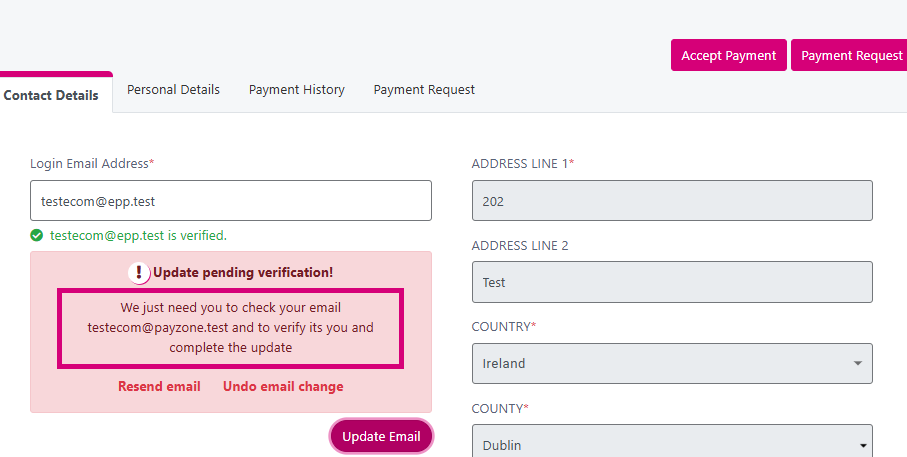
If the account is already Verified, an email will be sent to the new address to be validated by the user. The link is valid for 24 hours. The old email remains intact until the new one is validated. The old email will also receive a notification. You can resend or undo the email change if needed.
If the user has multiple Payzone accounts servicing other organisations, the email will update only on your organisation's system. It will not change on other organisations' systems. All active sessions on other devices will be logged out, requiring login with the new email address.
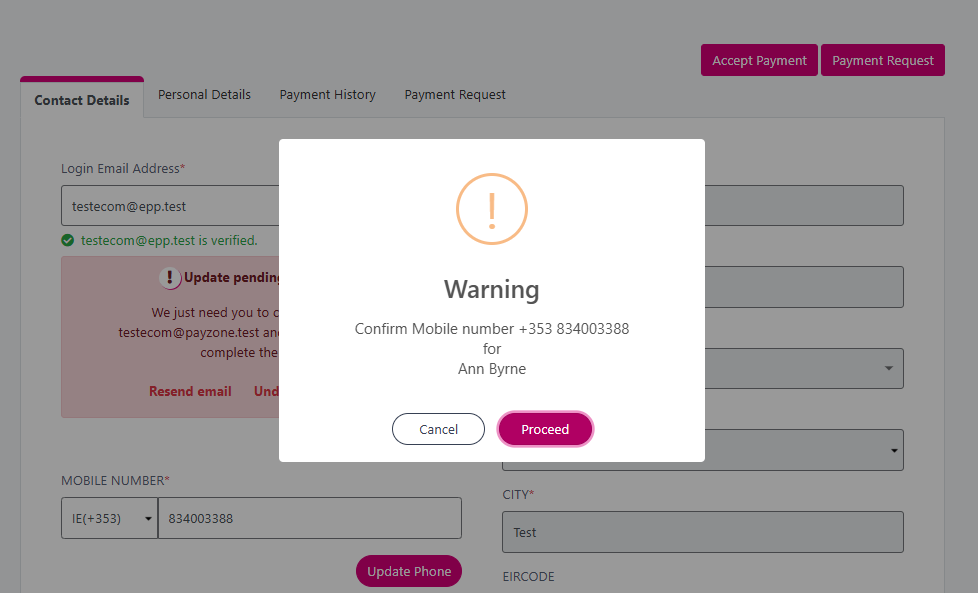
You can also update their phone number which will generate a warning message to make sure you are entering the correct phone number.