Manual Rollover - Existing Students
This article will explain how you can manually rollover your classes from year to year, saving you from uploading data for the whole school each year.
Instructions
From the menu select Manage → Classes
Start with the 6th class/year students and rename their class to Past Pupils.
If you have different classes, such as 6A and 6B, we suggest using the Add New Class button to create a class for Past Pupils.
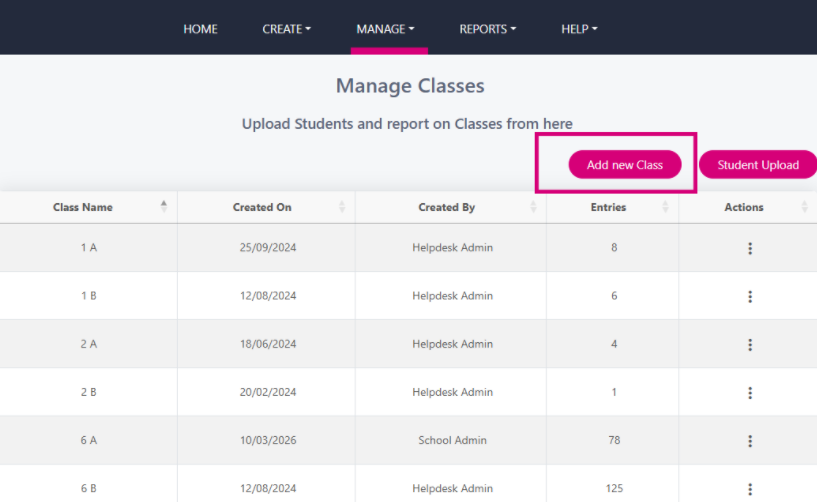
Once the Past Pupils class is created click on the 3 dots beside the class in Manage Classes and click View/Edit. This will open up the class and you can then click the ‘Add Students’ button.
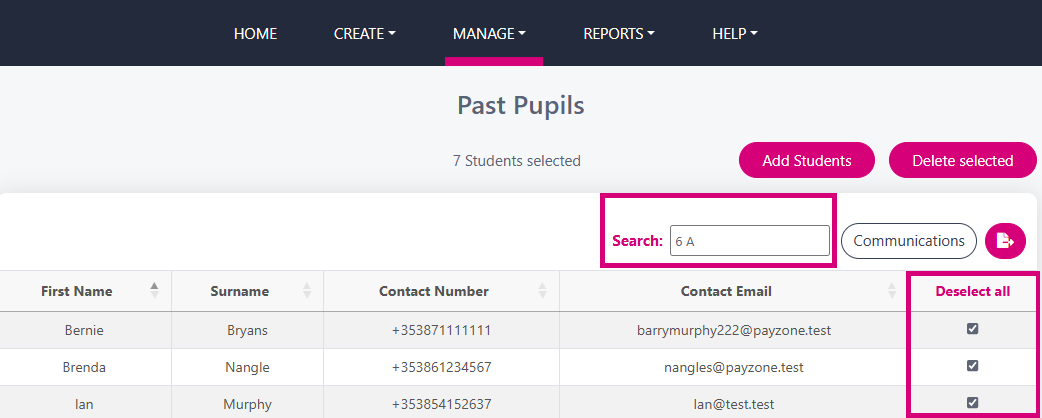
Use the search box to type the old class name, e.g., 6 A, then click Select All and Add Students. This adds all 6A students to the new Past Pupils class.
Repeat for all 6th year classes until all are added to Past Pupils. Then delete the individual 6th Year classes.
Rename the 5th classes/years to their new 6th class/year names, continuing this for all years/classes. For example, 5 A becomes 6 A, 5 B becomes 6 B, and so on.
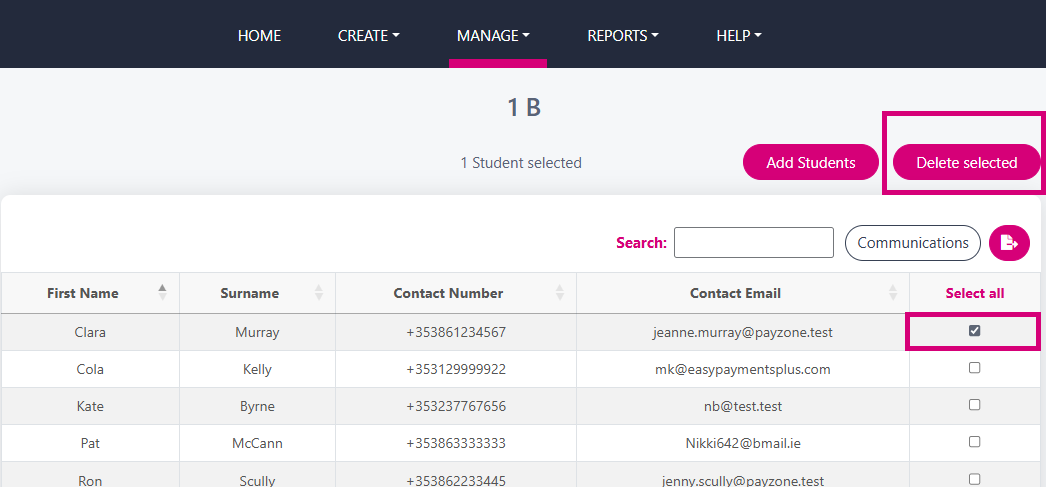
To delete individual students from a class, click the 3 dots beside the class and click Edit/View, select the students you wish to delete and click ‘Delete Selected’.