How to add a file to a product / campaign / event / email
This article will guide you on how to add a file attachment to a description or receipt section of a new or existing product. Files must be saved in a shared drive like One Drive to create a URL. The URL will convert to a hyperlink when added to the product. The end user can click on the hyperlink to open and view the file.
You can add a file when creating a new product or later by clicking Edit on an existing product.
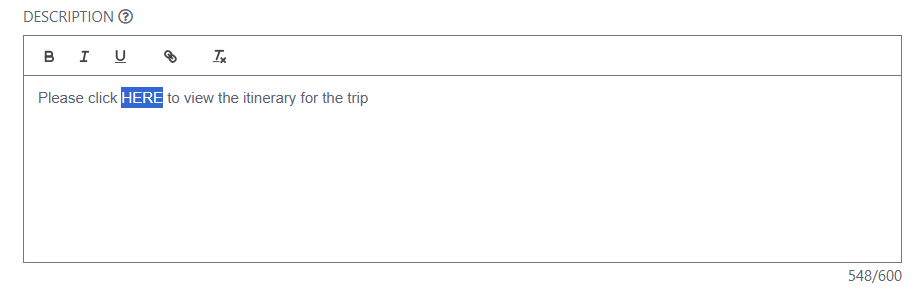
In the description or receipt section, type the sentence, then highlight the word that you want to become a clickable hyperlink that opens the file on the end user’s side.
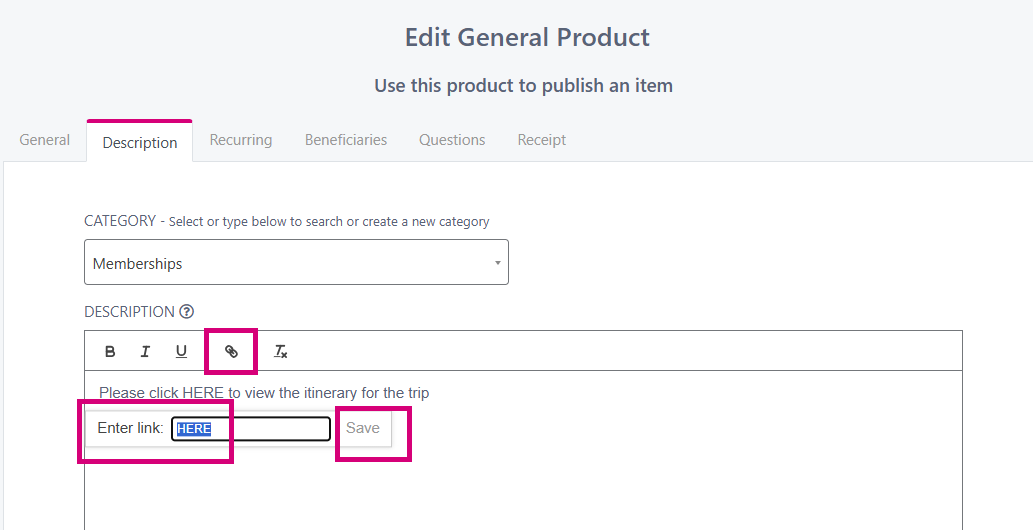
Click on the attachment icon and a small window will open up containing your highlighted word. Paste the URL from your shared drive file here and click Save. Don’t forget to click the pink Save button at the bottom of the page.
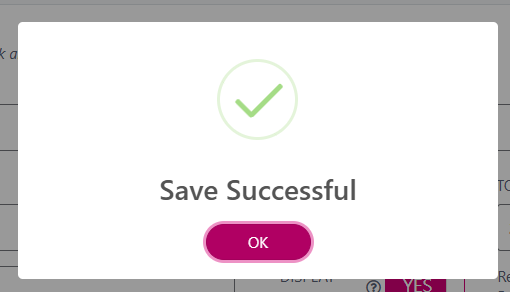
Your will see a success message to let you know you have completed successfully
Your file is now available as a clickable hyperlink for your end user